Generate and share your API key
To connect your fleet's data to your integration partner's software, generate an API key inside your Hunter ELD portal and send it to them — they may call it your Company Key. It takes about a minute. Follow the four steps below.
Share with anyone who needs to do this.
- Step 01
Open Settings
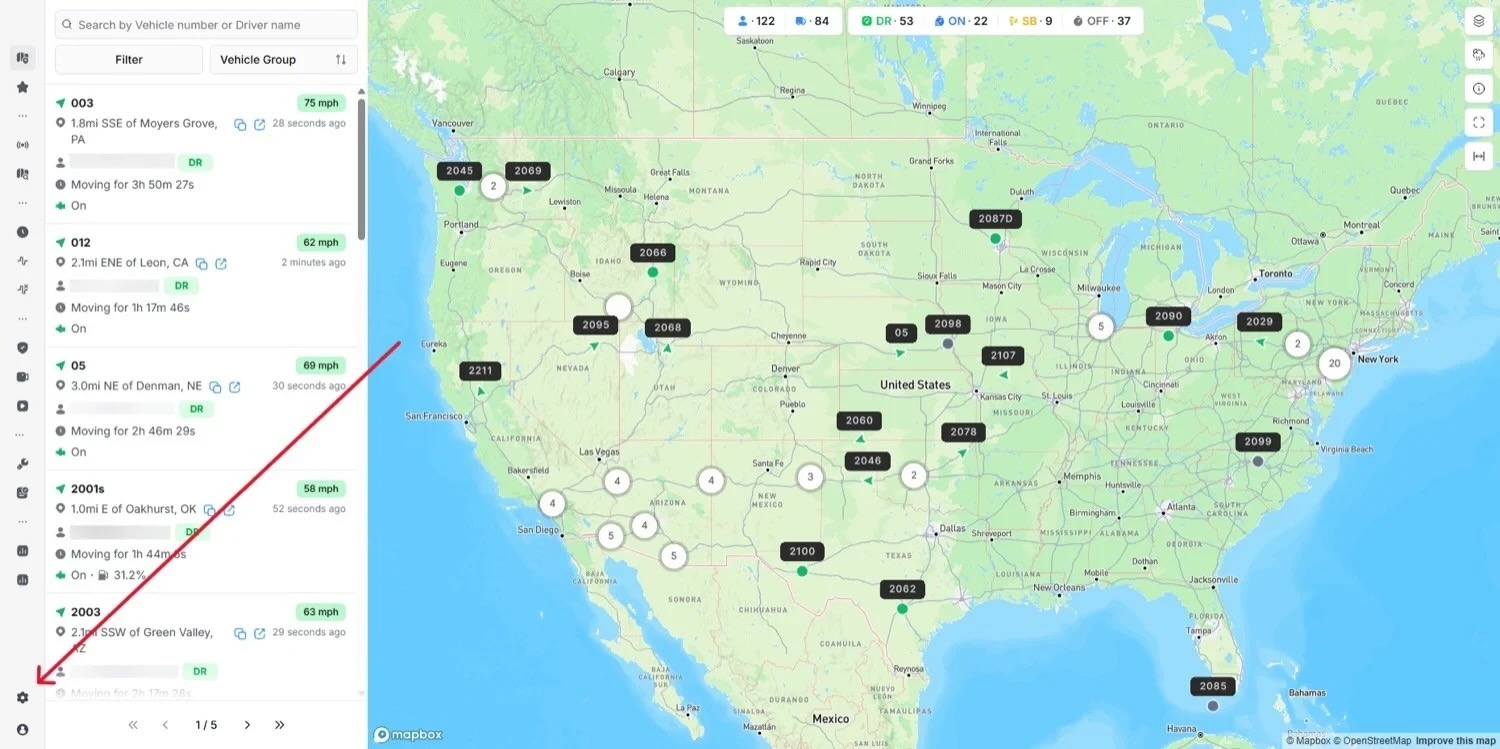
Log in to your Hunter ELD account. In the left sidebar, click the Settings icon — the gear near the bottom.
- Step 02
Open API Key and click Create New
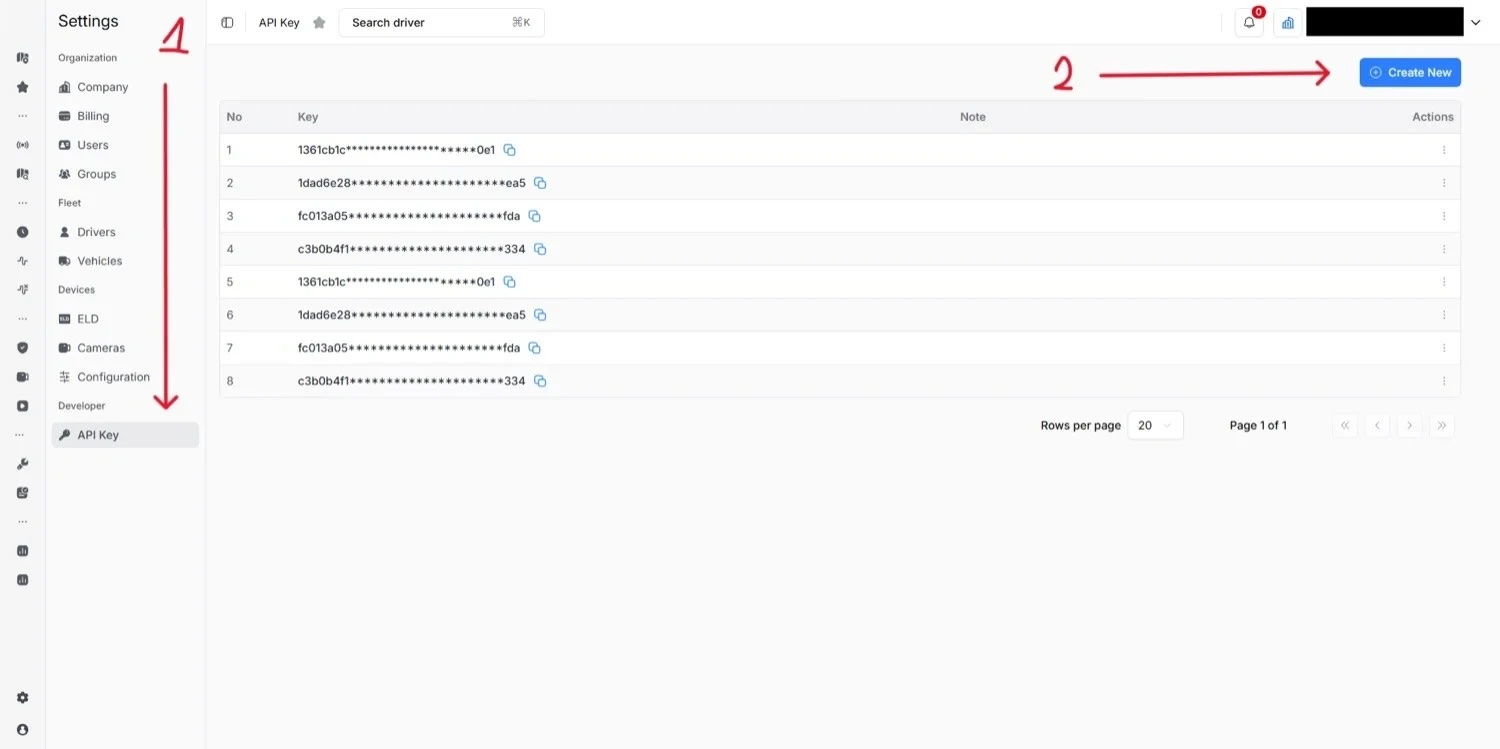
In Settings, open API Key under the Developer section. On that page, click Create New in the top-right corner.
- Step 03
Name your key
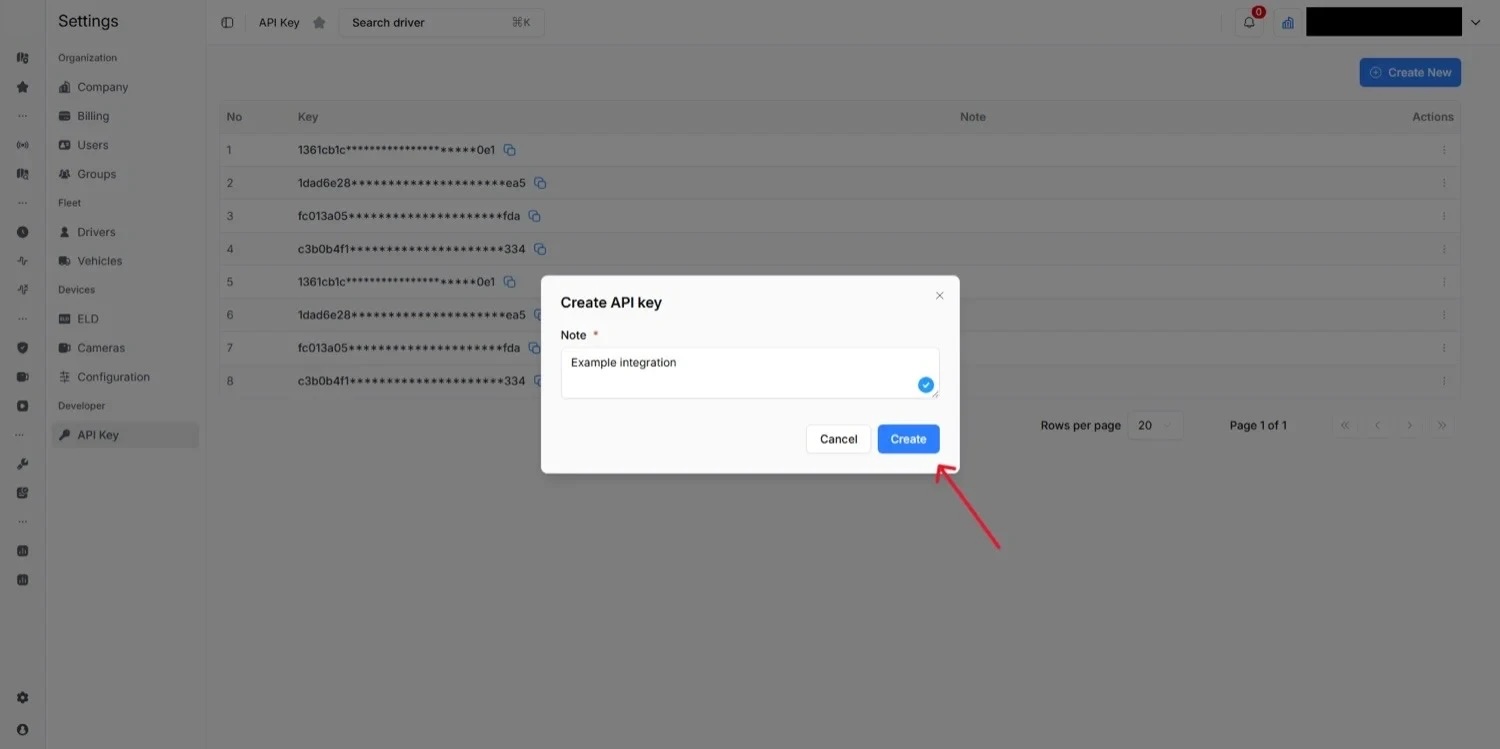
Give the key a name you'll recognize later — your integration partner's company name works well. Then click Create.
- Step 04
Copy the key and send it
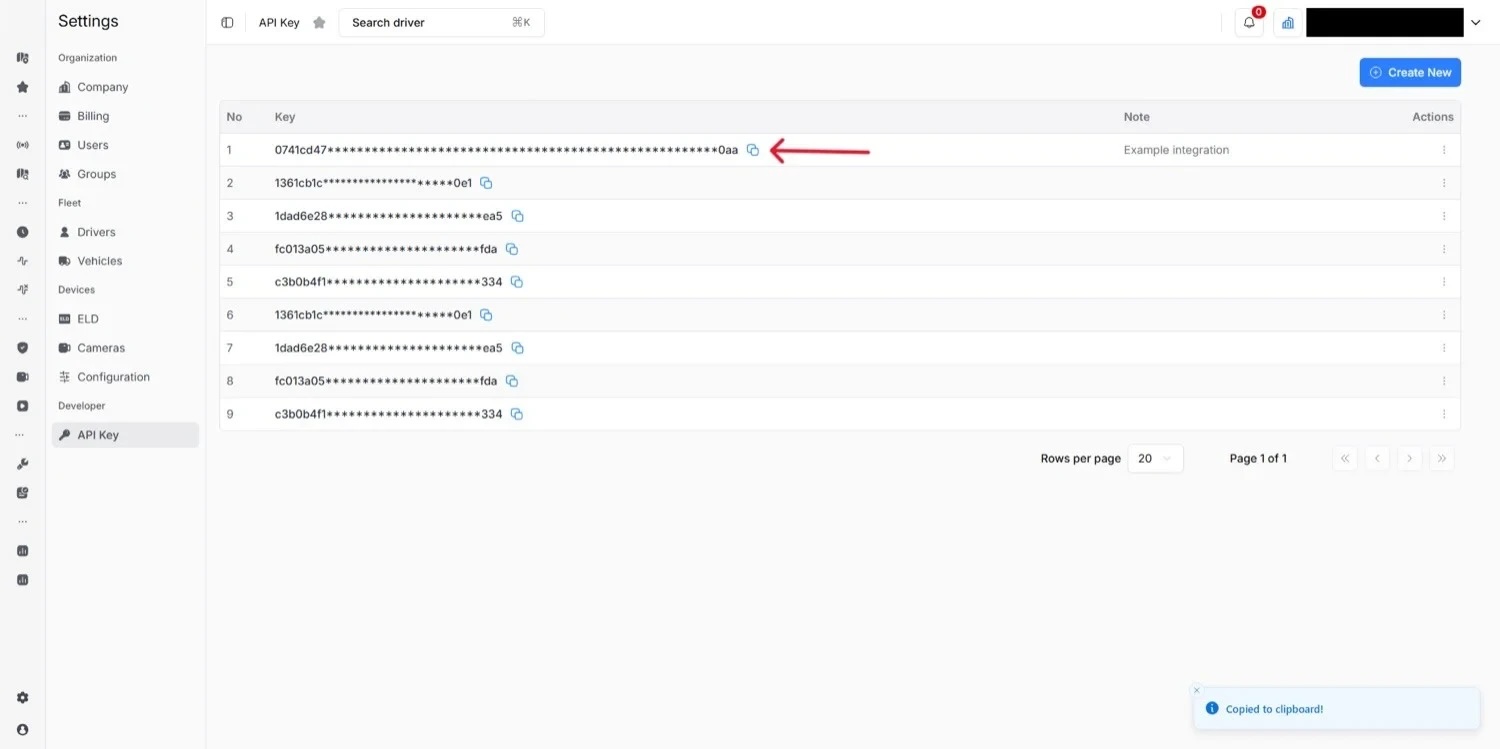
Your new key appears at the top of the list. Click the copy icon next to it, then send the key to your integration partner. That's all you need to do.
Need help?